-
pcWRT VPN Router for Business: Set Up a Site-to-Site WireGuard VPN in Minutes
Every small business with more than one location eventually hits the same wall: how do you securely connect two offices so employees can share files, access the company server, or use the same point‑of‑sale system — without an IT department? The answer used to be expensive enterprise gear or a managed VPN service. The pcWRT VPN router flips that script. It puts a secure, always‑on site‑to‑site VPN within reach of any small business owner, no networking wizardry required.
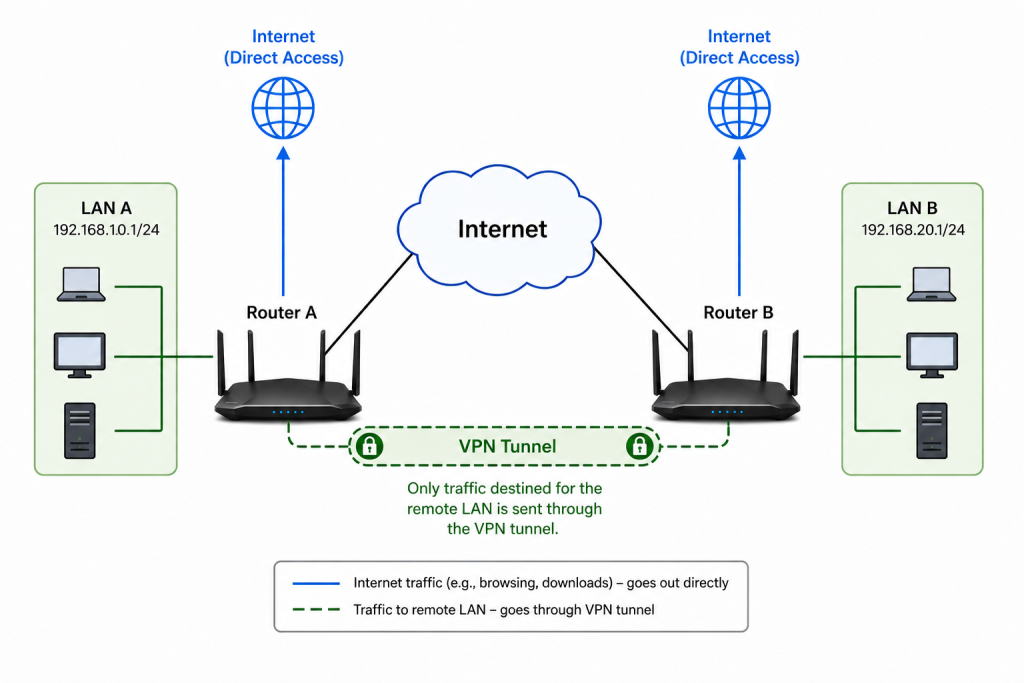
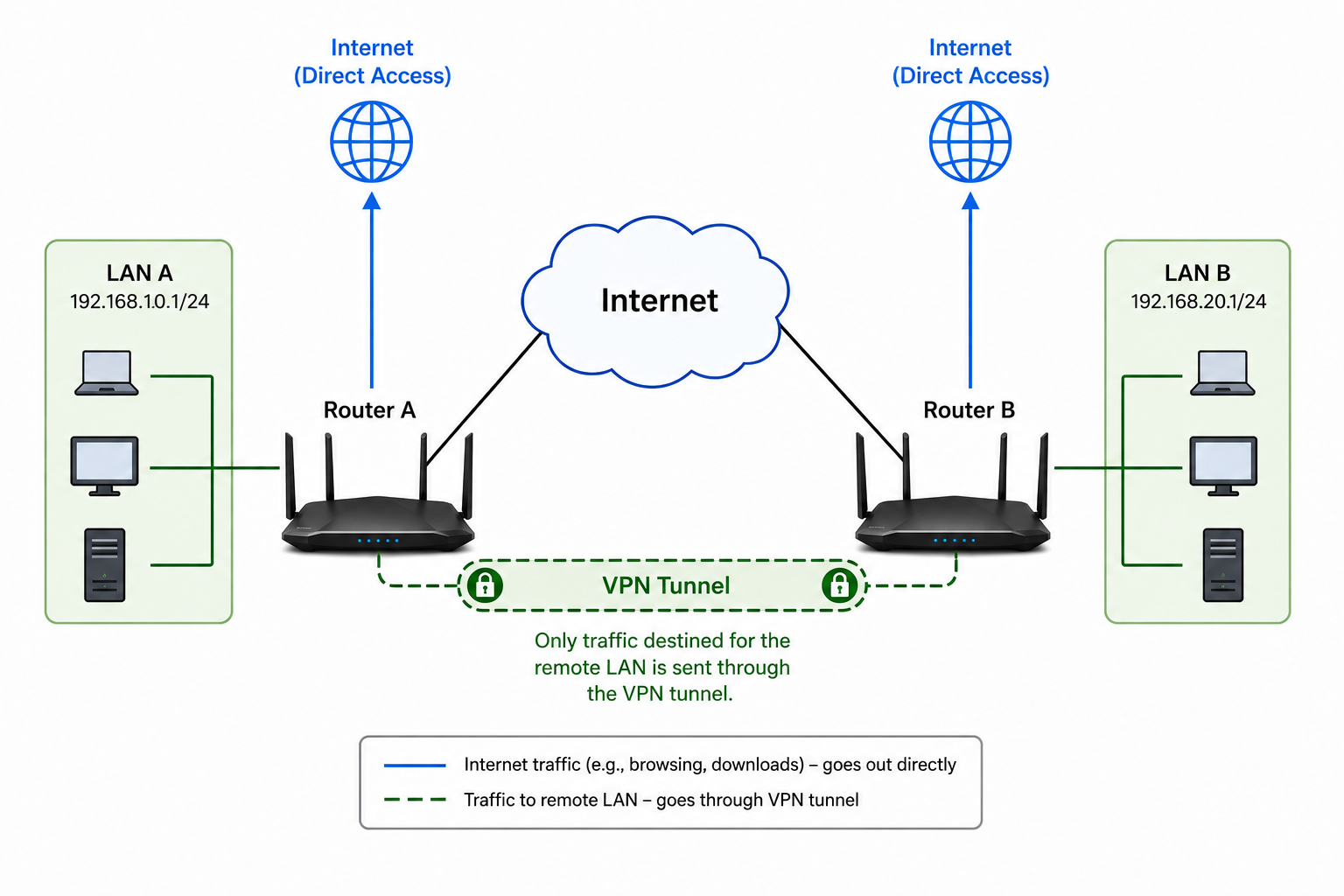
In this guide, I’ll walk you through building a permanent WireGuard tunnel between two pcWRT routers. We’ll use split tunneling so only traffic destined for the remote office goes through the VPN — each location still connects directly to the internet for everything else. By the end, you’ll have an enterprise‑grade link between your locations for a fraction of the typical cost.
Why a pcWRT VPN Router Is the Right Fit for Your Business
WireGuard is already the gold standard for fast, modern VPNs. What makes the pcWRT VPN router special is its interface: it takes the complex configuration that normally requires a command line and turns it into a simple web form. You don’t need to hire a consultant or learn routing tables. Just follow this guide, and your branch office, retail shop, or home office will be securely meshed with HQ in minutes.
What You’ll Need
- Two pcWRT routers, each with a stable internet connection (one for each location)
- Admin access to both routers’ web interfaces
- A Dynamic DNS hostname using pcWRT’s builtin DDNS service — so you only need a public IP address (static IP still works but not required).
- Different LAN subnets at each site (e.g.,
192.168.10.1/24for the main office and192.168.20.1/24for the branch)
Business‑Ready Example Topology
Main Office (Router A) Branch/Home Office (Router B) WAN IP DDNS myoffice.pcwrt.net
No requirement LAN Subnet 192.168.10.1/24 192.168.20.1/24 All internal traffic between the two business locations will travel through the encrypted WireGuard tunnel transparently.
Step 1: Configure the Main Office Router (Router A)
- Log into the pcWRT router at your main office.
- Go to Settings → System
- Under the General section, check the box “Enable DDNS with pcwrt.net“
- Enter the DDNS Name, which is the domain name you’ll use to reach the WireGuard VPN server from Router B.
- Click Save under the General section.
- Go to Apps → WireGuard.
- Click the Server tab.
- Click the Enable button to enable the WireGuard server. The External Address field will be auto-populated with the DDNS name you set up above.
- Check the LAN box under the Network Access label. This is important. If the LAN box is unchecked, devices connected through the VPN tunnel won’t be able to access devices on the local LAN network.
- Under Peers, click Add.
- In the popup dialog, enter a name for the Remote office. Then click Generate Keys. Click OK to dismiss the dialog. I named the peer “Remote” in the screenshot below.
- Click Save.
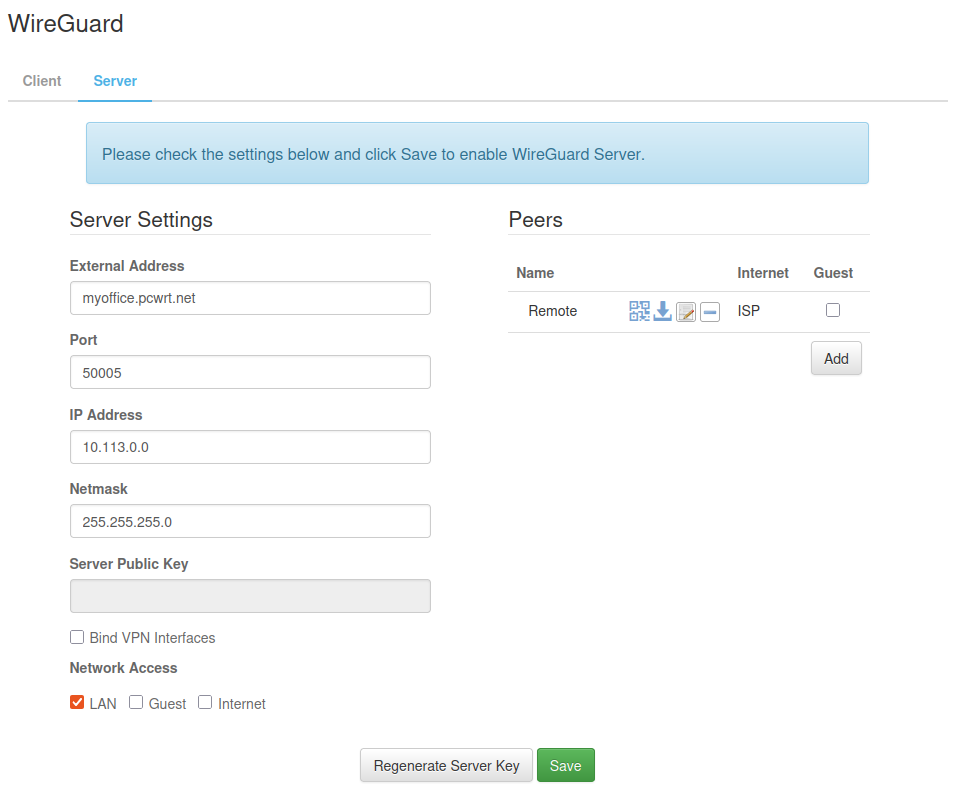
By now Router A is set up as a VPN server. Click the Download icon on the “Remote” peer line to download the config file, which will be imported onto Router B.
Step 2: Configure the Branch Router (Router B)
- Log into Router B.
- Go to Settings → Network.
- Under LAN IP Address & Netmask, change the IP Address to 192.168.20.1.
- Click Save. The router will reboot.
- Log into Router B again.
- Go to Apps → WireGuard.
- Go to the Client tab (should be the default).
- Under Enable for Network, check the LAN box.
- Check the box “Tunnel only the domains and IP ranges listed below through WireGuard VPN. Everything else will go through the alternative route.“
- In the text box below, enter 192.168.10.0/24, which is the LAN subnet on Router A.
- Click the Add button under the Connections section.
- Enter a name for the VPN Connection, then click Upload WireGuard Config to upload the file you saved in Step 1. Click OK to dismiss the dialog.
- (Recommended) Check the Auto-start box so the VPN tunnel initiates automatically on every reboot.
- Click Save.
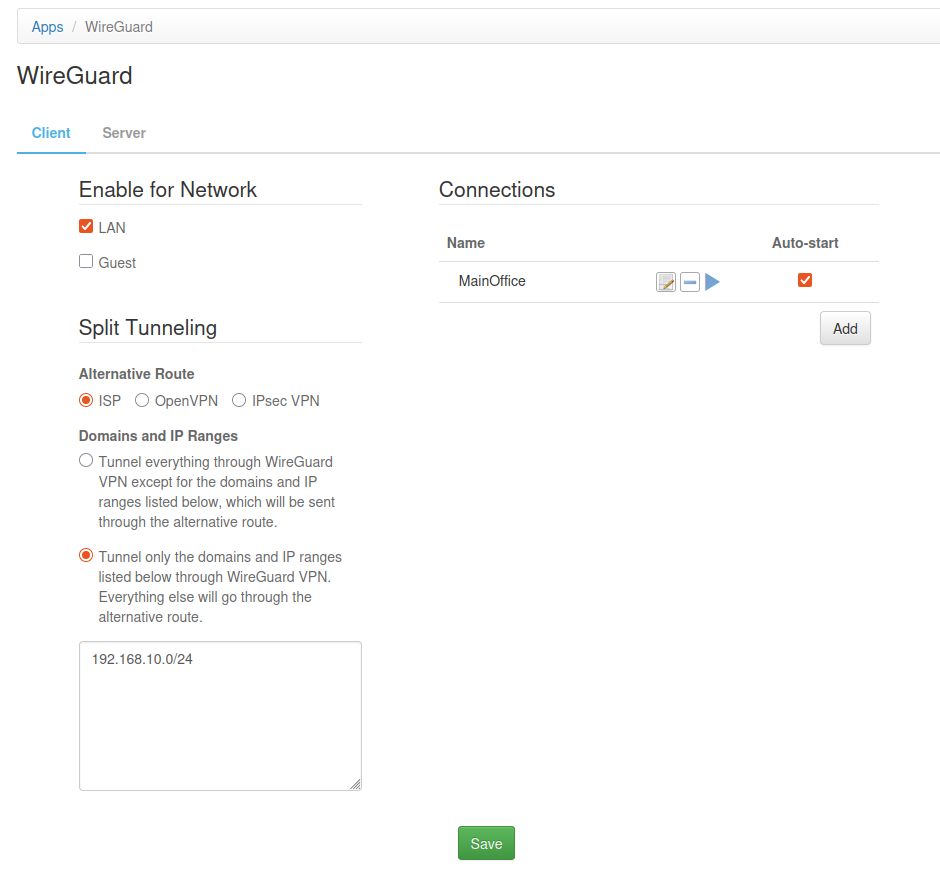
Step 3: Verify Business‑Grade Connectivity
Click the Play icon to start the VPN connection. The Status icon on the Connection line will turn green when the VPN connection is successfully established.
Step 4: Test Your Site‑to‑Site VPN
From a computer at the remote office (e.g., 192.168.20.51) ping the main router’s LAN address:
ping 192.168.10.1A successful reply means the tunnel works. Now access business resources in the main office: a shared network drive, an inventory database, or a POS terminal. Everything behaves as if both offices are on the same local network, but all inter‑office traffic is encrypted end‑to‑end.
Other Variations
In the above scenario, devices in the remote branch office (Router B) will be able to access resources in the main office (Router A). What if you want devices in the main office to access resources in branch offices? Then you’ll switch the roles of Router A and Router B. I.e., set up Router B in the main office and set up Router A in the branch office.
What if you want to allow two-way inter-office traffic? Then you need to set up both routers (A and B) as both VPN client and VPN server — mirror the configurations on Router A and Router B.
Why a pcWRT Router Site-to-Site VPN is The Right Choice for You
Normally, deploying a site‑to‑site VPN demands advanced IT skills — think command‑line configuration, manual routing tables, and complex firewall policies. That’s a non‑starter for many small businesses. The pcWRT VPN router changes the equation: the entire setup lives in a clean, intuitive web interface. You can build an enterprise‑level VPN link by clicking a few buttons, exporting a configuration file on one side and importing it on the other.
Real‑World Business Uses
- Connect a retail store to the main office for real‑time inventory and POS access
- Link a remote warehouse so staff can access the central ERP system
- Give a home office or satellite branch secure access to the company NAS and printers
- Extend VoIP phone systems across locations without opening ports to the internet
- Combine multiple sites into one virtual network for seamless collaboration
Final Thoughts
The pcWRT VPN router for business strips away the complexity that keeps small business owners from building their own secure, multi‑site network. In about ten minutes and a few simple steps, you can link offices, retail counters, and remote workers with a connection that rivals hardware costing ten times as much. If you’ve been putting off a site‑to‑site VPN because it sounded too technical, grab a pair of pcWRT routers — you’ll have your own private business network running before you finish your morning coffee.
Related how-tos on pcWRT



Recent Posts
- pcWRT VPN Router for Business: Set Up a Site-to-Site WireGuard VPN in Minutes
- How to Set Up a Router-to-Router WireGuard VPN Behind CGNAT (pcWRT Guide)
- pcWRT DDNS Setup Guide: Free & Easy Remote Access in 2 Minutes
- Double VPN, multi-hop VPN, VPN chaining, what is it?
- VPN Split Tunneling and Split Tunneling Two Separate VPN Connections with the pcWRT Router
Recent Comments
- on How to allow or block web sites on the router
- on How to allow or block web sites on the router
- on How to allow or block web sites on the router
- on Monitor activities on your home network
- on How to reset the pcWRT router
Archives
- August 2026
- May 2026
- February 2026
- January 2025
- December 2024
- June 2024
- April 2024
- March 2024
- August 2023
- May 2023
- February 2023
- June 2022
- December 2021
- November 2021
- August 2021
- January 2021
- December 2020
- October 2020
- August 2020
- July 2020
- June 2020
- May 2020
- April 2020
- February 2020
- January 2020
- December 2019
- October 2019
- December 2018
- August 2018
- July 2018
- June 2018
- January 2018
- November 2017
- October 2017
- September 2017
- August 2017
- July 2017
- June 2017
- January 2017
- August 2016
- May 2016
- December 2015
- August 2015
- July 2015
- May 2015
- April 2015
- March 2015
Categories


